How to Connect Yardbook to Easy P4P with Zapier (Step-by-Step)
Use Yardbook as your CRM? Here's the step-by-step setup I use to send completed jobs and revenue from Yardbook to Easy P4P automatically with Zapier, in about 15 minutes.
Connecting Yardbook to Easy P4P means using Zapier to send each completed Yardbook job to Easy P4P automatically, so crew pay and bonuses calculate without retyping the job.
I've used Yardbook since the day I started my business, and I still do. It's a fantastic CRM, but it doesn't have a direct connection to my P4P software. The fix is Zapier, and it's the same setup I run on my own crews. Once it's on, every job I mark complete in Yardbook shows up in Easy P4P automatically, with the crew, the date, and the revenue. No more day sheets, no retyping, and no nightly math.
Setup takes about 15 minutes. Here's exactly how to do it.
Free PDF download: the Yardbook + Zapier setup guide
An 8-page, step-by-step guide with screenshots. No email or login required. Keep it open beside Zapier while you set up.
How does the Yardbook and Easy P4P connection work?
Easy P4P doesn't talk to Yardbook directly. Instead, Zapier watches Yardbook for a "Job Completed" event and sends that job's details to Easy P4P. Easy P4P then finds the crew assigned that day, splits the job's revenue across them, and updates their budgeted hours and bonus, the same as if you'd logged the job by hand.
What do you need before you start?
- A Yardbook account with at least one completed job to test with.
- An Easy P4P account with admin access.
- A Zapier account. The "Webhooks by Zapier" step is a premium feature, so you'll need a paid Zapier plan or a trial. I'm on the Zapier Pro plan.
- Your crews assigned in Easy P4P on the Today tab for the dates you test with.
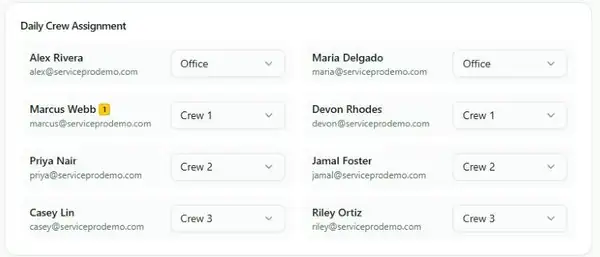
Crews need to be assigned on the Today tab for the date of the job.
Step 1: Copy Your Webhook Token
In Easy P4P, open Company Settings and scroll to "Yardbook / Zapier Integration." Click the eye icon to reveal your Webhook Token, then the copy icon. Treat it like a password. If it's ever shared by mistake, click Regenerate Token and update your Zap.
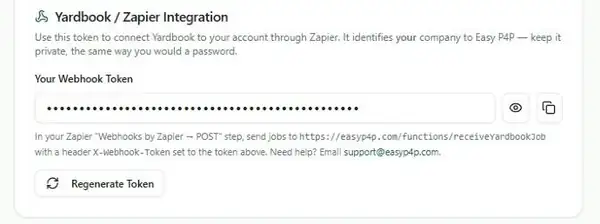
Company Settings, Yardbook / Zapier Integration: reveal and copy your token.
Step 2: Start a New Zap with Yardbook as the Trigger
In Zapier, click Create, then Zap. Choose Yardbook as the trigger app and "Job Completed" as the event. Connect your Yardbook account, then click Test trigger. Zapier will pull a real completed job as a sample, and you'll use it in a minute to map the fields.
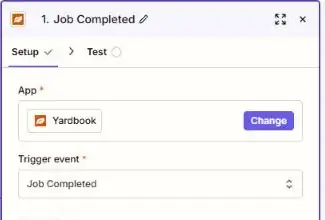
The trigger: Yardbook, Job Completed.
Step 3: Add the Webhooks by Zapier Action
Click the plus sign to add an action, choose Webhooks by Zapier, and pick the POST event.
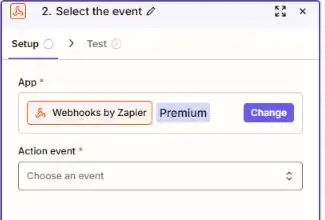
Webhooks by Zapier is a premium app, so it needs a paid plan or trial.
Step 4: Fill In the Webhook Settings
- URL: https://easyp4p.com/functions/receiveYardbookJob
- Payload Type: json
- Wrap Request In Array: No
- Unflatten: Yes (the default)
- Headers: add one header named exactly
X-Webhook-Tokenand paste your token from Step 1 as its value.
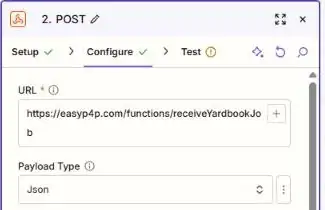
URL and payload type.
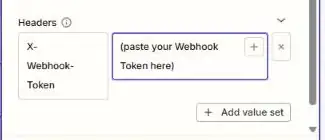
The X-Webhook-Token header holds your token.
Step 5: Map the Job Details
In the Data section, type each name on the left and pick the matching item from your Yardbook sample on the right:
- id: the job's ID (required)
- date: the completion date (required)
- labor_revenue: the job's total as a plain number (required)
- crew: the crew name (recommended). It needs to match a crew name in Easy P4P.
- employee_id or employee_name: recommended for better matching
- customer_name, notes, work_completed: optional, and shown in your Jobs history
- jobs_completed: type the number 1
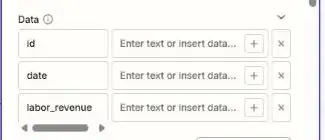
Data fields mapped from the Yardbook sample job.
Step 6: Test It
Click Test step. A good result shows success: true. Then open Crews & Jobs, then Jobs, in Easy P4P to confirm the job landed on the right crew, date, and revenue.
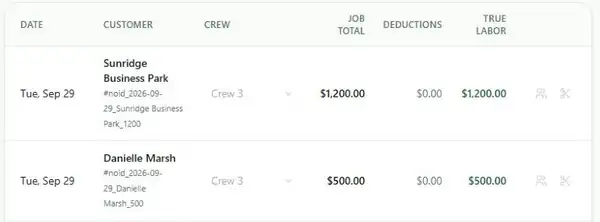
The job in the Easy P4P Jobs ledger.
If something looks off, these are the usual causes:
- skipped: true means nobody was assigned to a crew on that date. Assign the crew on the Today tab, then use Redeliver a Job to send it again.
- Unauthorized means the token is wrong. Re-copy it and check that the header is spelled exactly
X-Webhook-Token. - A job never shows up: check the Zap's task history in Zapier first. If it succeeded there, use Redeliver a Job in Easy P4P.
Step 7: Turn the Zap On
Name your Zap and switch it on. From then on, every job marked Completed in Yardbook lands in Easy P4P automatically.
Two Things to Know
Zapier checks Yardbook on a schedule, so a job can take a few minutes to arrive after you mark it complete. And crews need to be assigned in Easy P4P for that day, because that's how the revenue gets split across the right people.
Want the whole walkthrough on one page?
What do you get once it's running?
Your crews see their numbers as soon as jobs close out, and you get daily, weekly, and monthly KPIs without lifting a pencil. That's the problem I set out to solve when I stopped doing this on handwritten crew sheets. If you use Yardbook and you're ready to stop doing P4P by hand, you can set this up in an afternoon.
Start your free trial of Easy P4P
Disclaimer: Easy P4P is a software tool to help you track performance and calculate payroll. It is not a legal, tax, or HR service, and nothing in this blog post is legal or wage-compliance advice. Always consult a qualified professional about your specific obligations under federal, state, and local labor laws.
More from the founder's journal
- Callbacks Are Costing You More Than You Think: How to Handle Redos Without Losing Money
- The 8 KPIs Every Service Business Owner Should Check Weekly
- Know Your Numbers Every Day: How Easy P4P Keeps Your Crews and Business in the Green Zone
- The Tech Stack I Use to Run My High-Six-Figure Operation
Use Yardbook? See how Easy P4P works with it. Want to know who writes this? About Jason and QuickCall.